This Tool Will hack face books accounts we are not responsible any system crash you will face
Welcome to HaCkEr-BrAdRi
HaCkEr-BrAdRi you Quality Software's Free of Cost with full version Keep Visiting and Keep enjoying . . . Don't Forget To Comment on Posts.
HaCkEr-BrAdRi Features
HaCkEr-BrAdRi provide you cracked,registered, serial key, and much more for free
HaCkEr-BrAdRi Update Daily
Our Team Update Blog Daily Or Twice A Day With latest and Cool Stuff For You For Free Download . . .
HaCkEr-BrAdRi Give You Big Variety Of Software's
HaCkEr-BrAdRi Provide You Latest and registered software's. . .
HaCkEr-BrAdRi
A Solution Of Your Needs
Showing posts with label Password Recovery. Show all posts
Face Book password hacker free download
Saturday, August 25, 2012
Facebook, Hack Tools, Password Recovery, Recovery Utilities
Access PassView 1.12
Sunday, July 15, 2012
Password Recovery
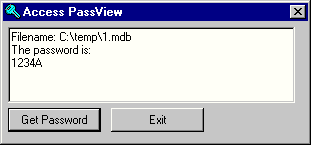
This utility reveals the database password of every password-protected mdb file that created with Microsoft Access 95/97/2000/XP or with Jet Database Engine 3.0/4.0 . It can be very useful if you forgot your Access Database password and you want to recover it.

Click Here To Download
Known Limitations
- In Access 2000/XP files, this utility cannot recover passwords that contains more than 18 characters.
- This utility shows only the main database password. It cannot recover the user-level passwords.
Using Access PassView
Using the Access PassView utility is very simple. it doesn't need any installation process or additional DLL files. You can run the "accesspv.exe" file from any directory you want, and start to work. In order to get the password from your mdb file, click the "Get Password" button, select the mdb file and the password will be shown in the main text box. There are also 2 alternative ways for getting the password of mdb file:- Drag & Drop: You can get the password of your mdb file by dragging it from the explorer window into the Access PassView window.
- Command-line: You can get the password of your mdb file by adding the filename as command-line parameter.
For example:
accesspv.exe c:\access\mymdb.mdb

Click Here To Download
Remote Desktop PassView v1.01 - Recover the password of Remote Desktop Connection utility
Sunday, July 15, 2012
Password Recovery
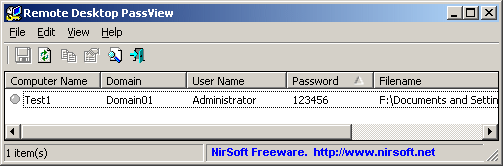
Remote Desktop PassView is a small utility that reveals the password stored by Microsoft Remote Desktop Connection utility inside the .rdp files.
If you want to recover that password of another .rdp file, just drag the file from Explorer into the window of Remote Desktop PassView utility or use the "Open .rdp File" option from the File menu.
Be aware that Remote Desktop PassView can only recover the passwords created by your current logged on user. It cannot recover the passwords of .rdp files created by other users.
In order to do that, follow the instructions below:
Click here to Download
Using Remote Desktop PassView
Remote Desktop PassView doesn't require any installation process or additional DLL files. Just copy the executable (rdpv.exe) to any folder you like, and run it. After you run rdpv.exe, the main window display the passwords of .rdp located under your "My Documents" folder. The default .rdp file (Default.rdp) is usually stored in this locationIf you want to recover that password of another .rdp file, just drag the file from Explorer into the window of Remote Desktop PassView utility or use the "Open .rdp File" option from the File menu.
Be aware that Remote Desktop PassView can only recover the passwords created by your current logged on user. It cannot recover the passwords of .rdp files created by other users.
Translating Remote Desktop PassView To Another Language
Remote Desktop PassView allows you to easily translate all menus, dialog-boxes, and other strings to other languages.In order to do that, follow the instructions below:
- Run Remote Desktop PassView with /savelangfile parameter:
rdpv.exe /savelangfile
A file named rdpv_lng.ini will be created in the folder of Remote Desktop PassView utility. - Open the created language file in Notepad or in any other text editor.
- Translate all menus, dialog-boxes, and string entries to the desired language.
- After you finish the translation, Run Remote Desktop PassView, and all translated strings will be loaded from the language file.
If you want to run Remote Desktop PassView without the translation, simply rename the language file, or move it to another folder.
Click here to Download
WebBrowserPassView v1.26
Sunday, July 15, 2012
Password Recovery
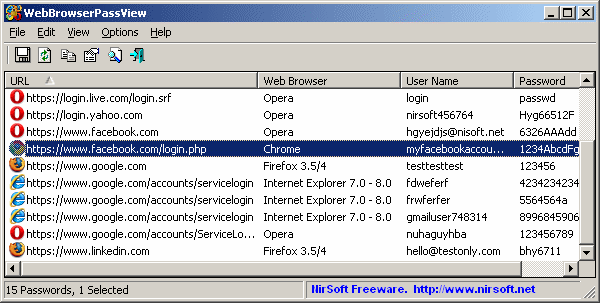
WebBrowserPassView is a password recovery tool that reveals the passwords stored by the following Web browsers: Internet Explorer (Version 4.0 - 9.0), Mozilla Firefox (All Versions), Google Chrome, Safari, and Opera. This tool can be used to recover your lost/forgotten password of any Website, including popular Web sites, like Facebook, Yahoo, Google, and GMail, as long as the password is stored by your Web Browser.
After retrieving your lost passwords, you can save them into text/html/csv/xml file, by using the 'Save Selected Items' option (Ctrl+S).
System Requirements And Limitations
- This utility works on any version of Windows, starting from Windows 2000, and up to Windows 7, including 64-bit systems. Older versions of Windows (Windows 98/ME) are not supported, because this utility is a Unicode application.
- Currently, WebBrowserPassView cannot retrieve the passwords if they are encrypted with a master password. Support for master password will probably be added in future versions.
- Currently, WebBrowserPassView cannot retrieve passwords from external hard-drive. Support for that might be added in future versions.
- On Internet Explorer 7.0-9.0, the passwords are encrypted with the URL of the Web site, so WebBrowserPassView uses the history file of Internet Explorer to decrypt the passwords. If you clear the history of Internet Explorer, WebBrowserPassView won't be able to decrypt the passwords.
- On Google Chrome - passwords originally imported from Internet Explorer 7.0-9.0, cannot be decrypted.
RouterPassView v1.40 - Recover lost password from router backup file
Sunday, July 15, 2012
Password Recovery
Most modern routers allow you to backup the configuration of the router into a file, and then restore the configuration from the file when it's needed.
The backup file of the router usually contains important data like your ISP user name/password, the login password of the router, and wireless network keys.
If you lost one of these password/keys, but you still have a backup file of your router configuration, RouterPassView might help you to recover your lost password from your router file.
For now, RouterPassView supports a limited number of router models, and I'll gradually add support for more routers in future versions. Also, be aware that even if your router is not in the list, you can still try to open your router backup file with RouterPassView, because some routers are sold with different brand name, but they still use the same software/chipset of other routers. Here's the list:
After running RouterPassView, you can open your router configuration file by using 'Open Router Config File' option (Ctrl+O) or by dragging the config file from Explorer into the main window of RouterPassView.
If RouterPassView manage to detect and decrypt your router file, you should get a list of passwords/wireless keys in the main window of RouterPassView. If RouterPassView cannot detect your file, it'll remain empty.
In these modes, RouterPassView decrypts the router file, but display it "as is" without analyzing the data stored in it.
The backup file of the router usually contains important data like your ISP user name/password, the login password of the router, and wireless network keys.
If you lost one of these password/keys, but you still have a backup file of your router configuration, RouterPassView might help you to recover your lost password from your router file.
System Requirements
- This utility works on any version of Windows, starting from Windows 2000 and up to Windows 7.
- RouterPassView supports limited number of router models.
Supported Routers
Due to large amount of router models available in the market, it's impossible to support all of them.For now, RouterPassView supports a limited number of router models, and I'll gradually add support for more routers in future versions. Also, be aware that even if your router is not in the list, you can still try to open your router backup file with RouterPassView, because some routers are sold with different brand name, but they still use the same software/chipset of other routers. Here's the list:
- Linksys WRT54GL (With original firmware or Tomato firmware), WRT54G (only some of them), WRT160N, WRT320N, and possibly similar models.
- Edimax BR6204WG, and possibly similar models.
- Siemens ADSL SL2-141, and possibly similar models.
- Dynalink RTA1025W, and possibly similar models.
- NETGEAR WGT624, and possibly similar models.
- ASUS WL-520g, WL-600g, and possibly similar models.
- ASUS RT-N10+ , and possibly similar models.
- Asus RT-N56U , and possibly similar models.
- D-Link DIR-655, DIR-300, and possibly similar models.
- Sanex SA 5100, and possibly similar models.
- Sitecom WL-351, WL-575, WL-312, and possibly similar models.
- COMTREND 536+ (Only Internet Login)
- US Robotics 9108 ADSL (internet login and admin login)
- D-Link DSL-2540U/BRU/D ADSL2+, DSL-2650U, DSL-520B
- D-Link DVA-G3170i/PT
- D-Link DSL-604T
- D-Link G3670B
- D-Link DSL-2640T
- D-Link DSL-G684T
- D-Link 2740B
- D-Link DIR-615 G2
- D-Link WBR-1310
- D-Link DSL-2543B
- D-Link DI-524
- D-Link DI-624+A
- TP-Link TD-8810 ADSL Modem/Router.
- Dynamode R-ADSL-C4-W-G1
- NetComm NB5Plus4 DSL
- Thomson TG580 DSL (only in Hex Dump mode)
- Asus RT-G31
- HuaWei EchoLife HG520 (Only some of them)
- TP-LINK TL-WR841N
- TP-LINK TL-WR841DN
- TP-LINK TL-MR342
- TP-LINK TL-WR340G
- TP-LINK TL-R460
- TP-LINK TL-WR741ND v2.0
- TP-LINK TL-WR700N
- TP-LINK TL-WR740N
- TP-LINK TL-WA801N
- TP-LINK TL-WR541G
- Belkin N+ (F5D8236uk4)
- Mercury MW54R
- Netgear DG632
Using RouterPassView
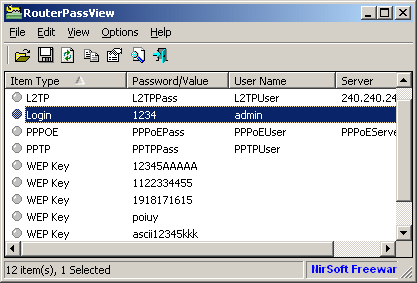
RouterPassView doesn't require any installation process or additional DLL files. In order to start using it, simply run the executable file - RouterPassView.exeAfter running RouterPassView, you can open your router configuration file by using 'Open Router Config File' option (Ctrl+O) or by dragging the config file from Explorer into the main window of RouterPassView.
If RouterPassView manage to detect and decrypt your router file, you should get a list of passwords/wireless keys in the main window of RouterPassView. If RouterPassView cannot detect your file, it'll remain empty.
Text Mode (Ascii and Hex Dump)
If RouterPassView shows you a list of passwords, but you can't find the password or other data that you need, you may try to locate your password by switching to Ascii Text Mode (F3) or Hex Dump Text Mode (F4).In these modes, RouterPassView decrypts the router file, but display it "as is" without analyzing the data stored in it.
Using the 'Grab Password From IE Window' option
If you try to recover your ISP/ADSL/L2TP/PPTP/PPPOE/DDNS password, but RouterPassView cannot decrypt the configuration file of your router, you still have a chance to retrieve the password by using this feature, assuming that you have the login password of your router. In order to use this feature, follow the instructions below.- Login into your router Web interface with Internet Explorer, and go to the password page that you wish to recover. This password page may look like this one:
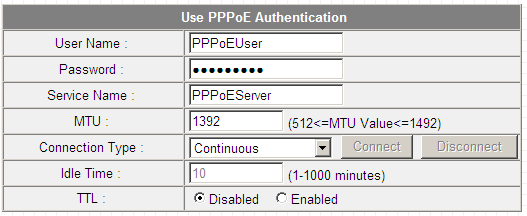
As you can see in the above screenshot, the password field is filled with bullets, but if this password field really contains the password, RouterPassView will be able to extract it and display it on the main window. - Go to the File menu, and choose 'Grab Password From IE Window' or simply press Ctrl+G
- If the router Web page store the password in the password field, RouterPassView will display the hidden password:
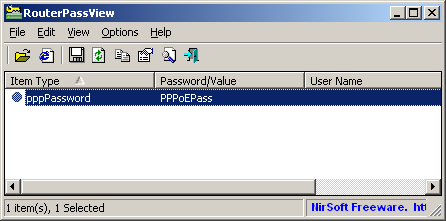
Be aware that some routers deliberately store wrong password in this field, and in for these routers, RouterPassView won't be able to recover your real password.
Subscribe to:
Comments (Atom)